
How to sing on Apple TV and pick songs from your iPhone

Install Hitokara on your Apple TV, then request songs from your iPhone. The lyrics show on the big screen, and you pick songs on your phone. The only link is a 4-digit pairing code. Here is what you need and how a group session goes.
What do you need?
- An Apple TV with Hitokara installed. It plays the songs and shows the lyrics.
- An Apple Music subscription on the Apple TV. Playback rights live on the Apple TV.
- An iPhone with Hitokara. This is where you search and request.
- The same Wi-Fi. Put the Apple TV and the iPhone on one network.

How do you connect them?
Open Hitokara on the Apple TV and it shows a 4-digit pairing code. You can see it on the home screen, in the queue view while singing, and in settings. You can change it under Manage Connections in settings. Enter the code on your iPhone and you are connected. On the same Wi-Fi, the Apple TV is found automatically.
How do you pick a song?
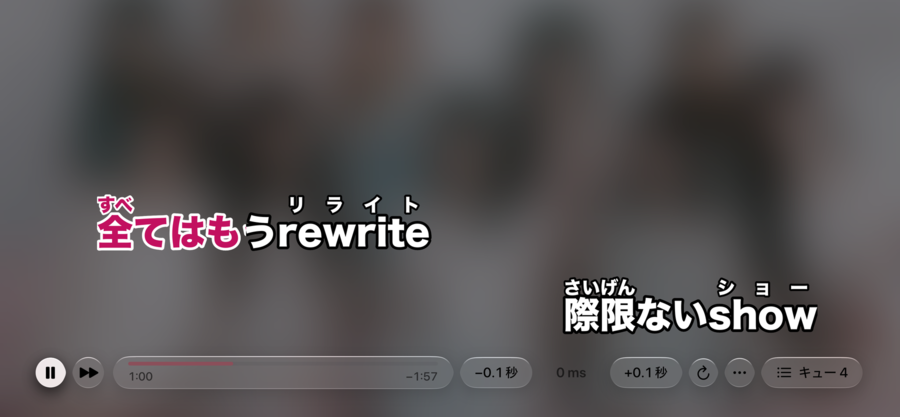
Search on your iPhone and tap to request. The song joins the Apple TV’s queue, and when its turn comes, the lyrics appear on the big screen. While a song plays, you can pause, skip, and adjust the lyrics timing from your iPhone.
What about taking turns with a group?
Requests line up in the order they arrive, and the screen shows who requested each one. Several iPhones can request at the same time. A friend’s iPhone only needs Hitokara installed. Without an Apple Music subscription, they can usually still request.

What if you want to change the order?
You can edit the queue from your iPhone. Remove a song, move it, or make it the next one up. If the lyrics for a song do not fit, you can switch to another set from the candidates.
Does it cost anything?
The Apple TV has no purchase screen. Requesting and singing are free.
Related reading: setting up karaoke at home; running a karaoke night.